git
workflow.Important: this tutorial requires git
version 2.25.0 or higher. To check your version, open a terminal window
and run
git --versionIf the version is earlier than 2.25.0, then you need to install a
more recent release of git.
In this course you will receive assignments and submit work using a git repository.
Your personal repository is a fork of the assignments developed for this course. You may clone your personal fork onto your own computer, or onto one of the available remote-access servers, or both. As you complete assignments, you will push (synchronize) your edits from your clone to your fork. The instructor can access your fork and provide direct assistance by editing files in your fork repository. To retrieve edits from the instructor, you pull changes from your fork to your local clone.
The original published assignments are referred to as the upstream repository. Occasionally the instructor will make corrections or additions to the upstream repository. You can fetch and merge those changes to keep your fork and clone up-to-date with the instructor. The upstream repository can contain multiple versions; the working version is called the main branch.
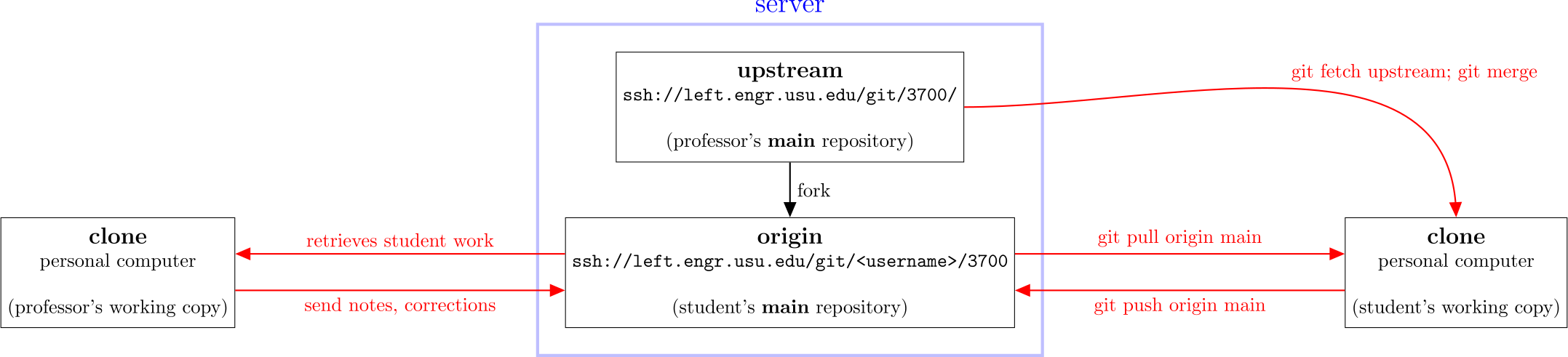
Review of terms:
git
serverThis lab-focused course is designed so that all assignments can be completed using a terminal program (i.e. text command interface). Using the terminal, a student can open a remote connection to a server in the ECE department. This setup allows students to complete the assigned work using any computer with a terminal program – Linux, Windows, or even a ChromeBook. Since a terminal is text-based, a high-speed internet connection is not necessarily required.
The required Xilinx/AMD software tools are pre-configured on the
server. Each assignment uses a Makefile to control the
software tools from within the terminal. Using this procedure, all
simulations, synthesis, implementation, and bitstream generation steps
are run on the high-powered server rather than on your personal
computer.
Some students may have high-powered personal computers and prefer to
run builds on their own hardware. This is possible but requires
obtaining and installing the (free) Vivado software on your own. You
will also need an appropriate development setup with a terminal and the
make utility.
There are several ways to approach the laboratory tasks in this
course. The main options are listed below. You can use any of these
options at any time, or you can mix different strategies based on what’s
most appropriate for your own needs and circumstances. With any of these
options, the main thing is that you use git to keep
your files synchronized with the server and the
professor/TAs.
sshTo access the servers, you will need a secure shell
(ssh) terminal. In Linux, you only need to open a
Terminal or Konsole program and type the ssh command like
this:
ssh <username>@genesys.bluezone.usu.eduwhere you replace <username> with your account
name. All registered students will be emailed an account and password
during the first week of the course. At present, there are three compute
servers available:
genesys.bluezone.usu.eduleft.engr.usu.edurando.bluezone.usu.eduSince these servers are on a protected network, you will need to be either on campus (e.g. in a computer lab, dorm room or other campus location), or you need to connect to the Virtual Private Network (VPN) before attempting to access these servers.
On some versions of Windows, you should be able to access the “Linux subsystem” or install “Ubuntu for Windows” or “Cygwin” environment to provide a Linux-like terminal program. Alternately you can use a dedicated Windows-based terminal program like PuTTY.
tmuxOnce you start working on the server, you will probably want to keep
your session active even if you need to leave for a while or your
connection drops. You can do this using the tmux command or
the GNU screen command. Newer distributions generally
provide the tmux command, so we will use it for this
tutorial.
After logging into a server, run
tmux aThis tries to attach to an existing session. If it answers
no session, then just run tmux without the
a option to create a new session.
The tmux session runs independently of your network
connection. To leave the session, type Ctrl-b d to
detatch from the session. You can re-attach to it later
by running tmux a again. This is especially useful for
running long compile jobs, or for maintaining a long-term work session.
It’s also good if you lose your network connection, the session will
still be there and you shouldn’t lose any work.
If you are using a Windows computer with sufficient free disk space, you can setup the Cygwin environment following instructions provided in a separate document. You will need to create your own Xilinx account and install Vivado on your own. There are not usually any problems in the Vivado or Cygwin install processes, but they can be quite time consuming and take a lot disk space and memory.
Many students have used Visual Studio as a front-end development environment for this course. The professor doesn’t use Windows and can’t advise on setting this up, but it seems to work well for those who are familiar with the VSCode application.
You can use the Linux Lab computers which should have Xilinx tools
and git installed. You can use these machines on-site or
remotely. Note that these computers might not be fully setup and tested
at the beginning of the semester.
git ProceduresFor this course, git repositories are held in the
/git directory on the compute servers. This is a shared
network directory so you can freely change between servers.
You can use git to clone your repository onto a personal
computer. The instructions in this section assume you will use a
terminal application to run git commands. There are a
variety of graphical front-end applications that offer the same
functionality, and you are welcome to use them, but they won’t be
discussed here.
Starting from the terminal, you can download a clone using this command:
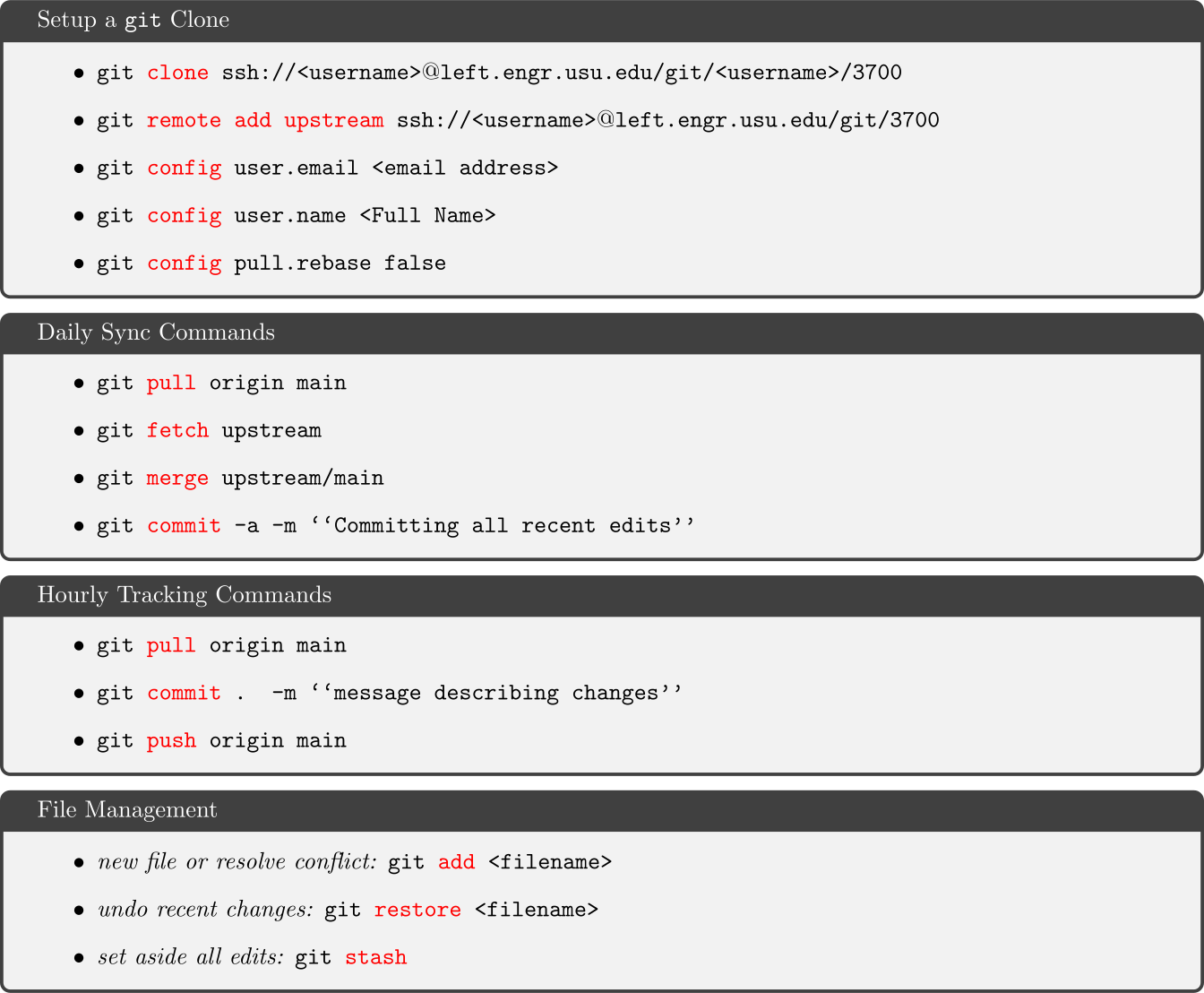
git clone ssh://<username>@left.engr.usu.edu/git/<username>/3700 Replace <username> with your account name. If you
have (1) setup your ssh key and (2) are connected to the GlobalProtect
VPN, then the command should immediately download the clone into a new
directory named 3700.
Next, navigate into the newly created 3700 directory,
and run this command to define the upstream repository:
git remote add upstream ssh://<username>@left.engr.usu.edu/git/3700
git fetch upstream
git merge upstream/main
Notice that the upstream repository doesn’t have your username. This will bring your fork up to date with the instructor’s public repository.
Each time you sit down to do work for ECE 3700, you should run these commands:
git pull origin main
git fetch upstream
git merge upstream/main
This will synchronize any updates from the instructor.
After making significant changes to your clone, you should synchronize them with the server using these commands:
git commit -a -m "<description of changes>"
git push origin mainAny time you create an important file you should add it
to the repository:
git add <filename>You can check the status of all files in a directory by running
git status .It’s okay to have some un-tracked files in your clone. Make sure to
add all source files (*.v, *.xdc), and
bitstream files (*.bit) since the instructor will need to
see them.
If you need to move tracked files, you should use
git commands:
git mv <old filename> <new filename>There are two ways to program the board.
If you have Vivado installed on your computer, you can use the Hardware Manager to connect to your Basys3 device and program it with the compiled bitstream device. The procedure for this is the same as used in ECE 2700 and should work in the EL103 lab.
If you create a bitstream file remotely, you can download the
bitstream file and copy it onto a USB thumbdrive. The thumb drive should
be formatted with the MBR partition method and a FAT filesystem. There
should be only one .bit file in the thumbdrive’s root
directory. With the Basys3 powered OFF, plug the thumbdrive into the USB
port on the upper right side of the board (north of the pushbuttons).
Next to the USB port is a jumper labeled J1 with three
settings: JTAG, QSPI, and USB. Move the jumper to the USB setting, then
turn ON the Basys3 power. It will take a few seconds to load the
bitstream onto the board.
You have the option to implement the bitstream file on the server, then transfer it to your local computer. In order to program the board, you only need to have the Vivado Lab Edition, an easier installation than the full Vivado product. The Lab Edition includes the Hardware Manager, which is a little more convenient than USB programming.
When you need help from the instructor or TA, navigate to the
directory where you need help and create a text file called
help. Type a detailed description of your
problem and save the file. Then add it to the repository:
git add help
git commit . -m "Requesting help"
git push origin main
Then separately notify a TA or instructor about your help request,
either in-person or via a Canvas message. They can sync your repository
and read the details in your help file. The instructor/TA
will write comments in the help file, and the TA/instructor
may edit files within your design. To retrieve updates, pull from the
server:
git pull origin mainIf the instructor has responded to your request, you should see
updates in the help file and possibly other files if they
were involved in the help request.
You can always contact the instructor via Canvas message, but
complex technical issues are handled more effectively using
git with help files. I recommend
carefully documenting your problem in the help file before
reaching out to the instructor or TA.